
wiki|vision
Guide to Setting Up Two-Factor Authentication
Setting Up Two-Factor Authentication
You now have the option to enable two-factor authentication (2FA) on itn|vision’s WMS and Leverandørservice platforms. This guide will help you set up 2FA. This makes you able to approve logins either via email or through an authentication app.
To access Mine indstillinger click the gear icon at the top of the itn|vision platform.
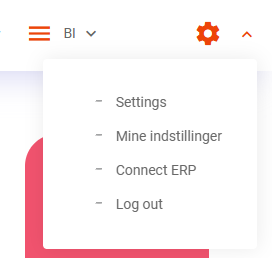
Follow the steps below to set up your 2FA
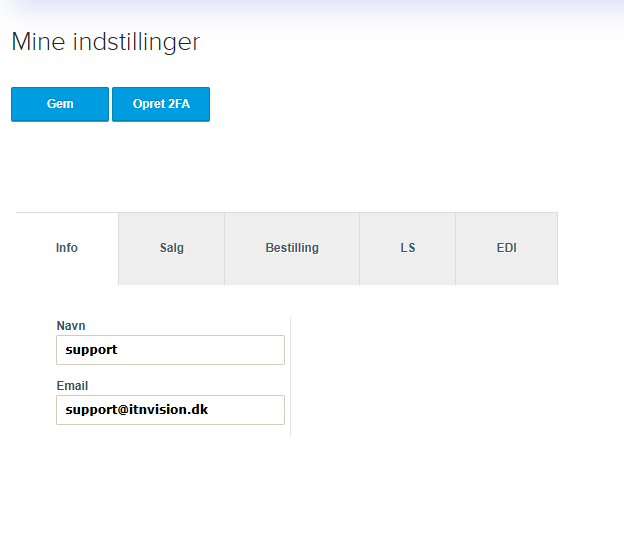
How to:
Go to Mine indstillinger – Info
. Click Opret 2FA
You will then be directed to a new page where you can choose whether to receive your verification codes via email or through an authentication app.
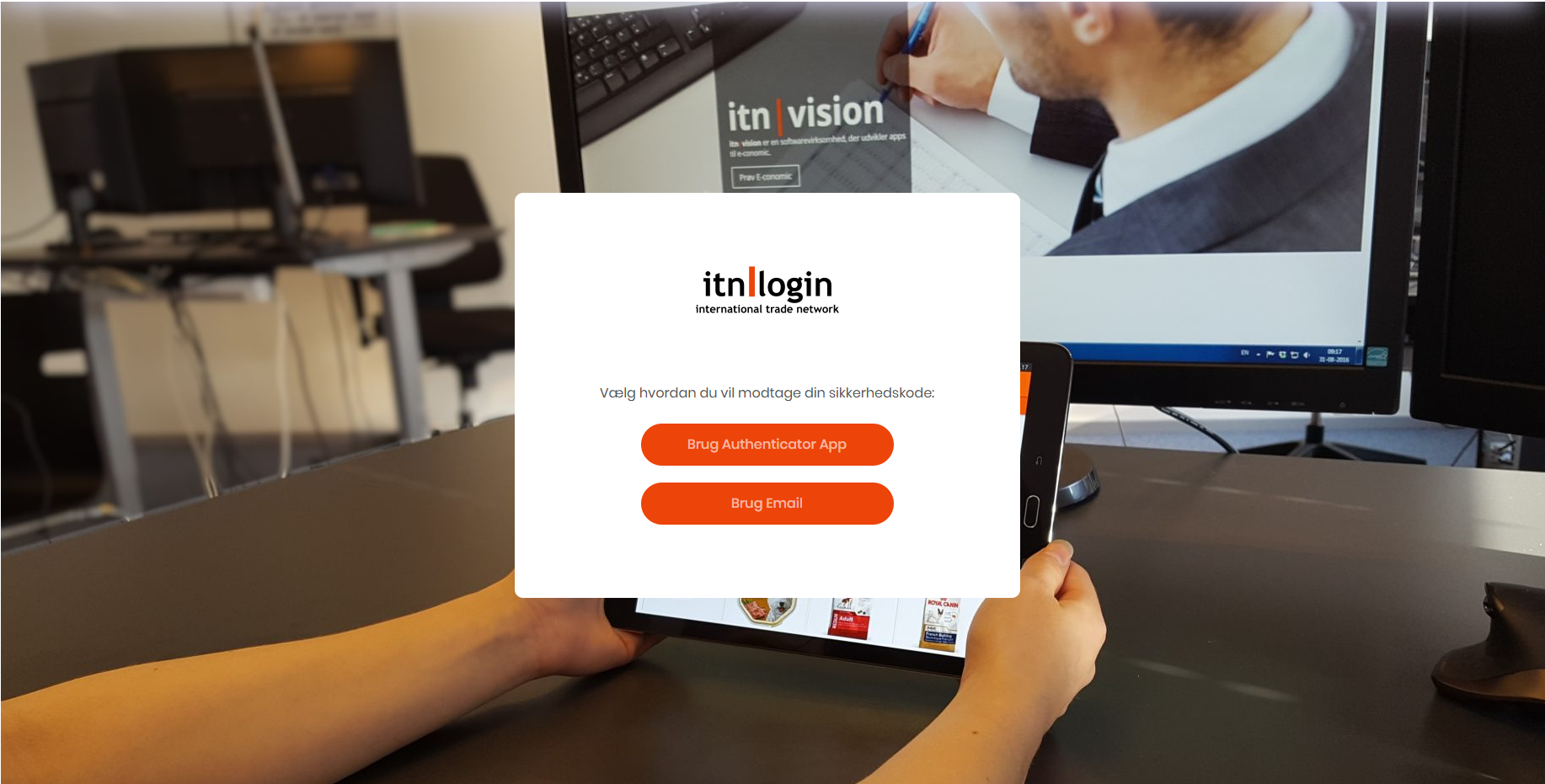
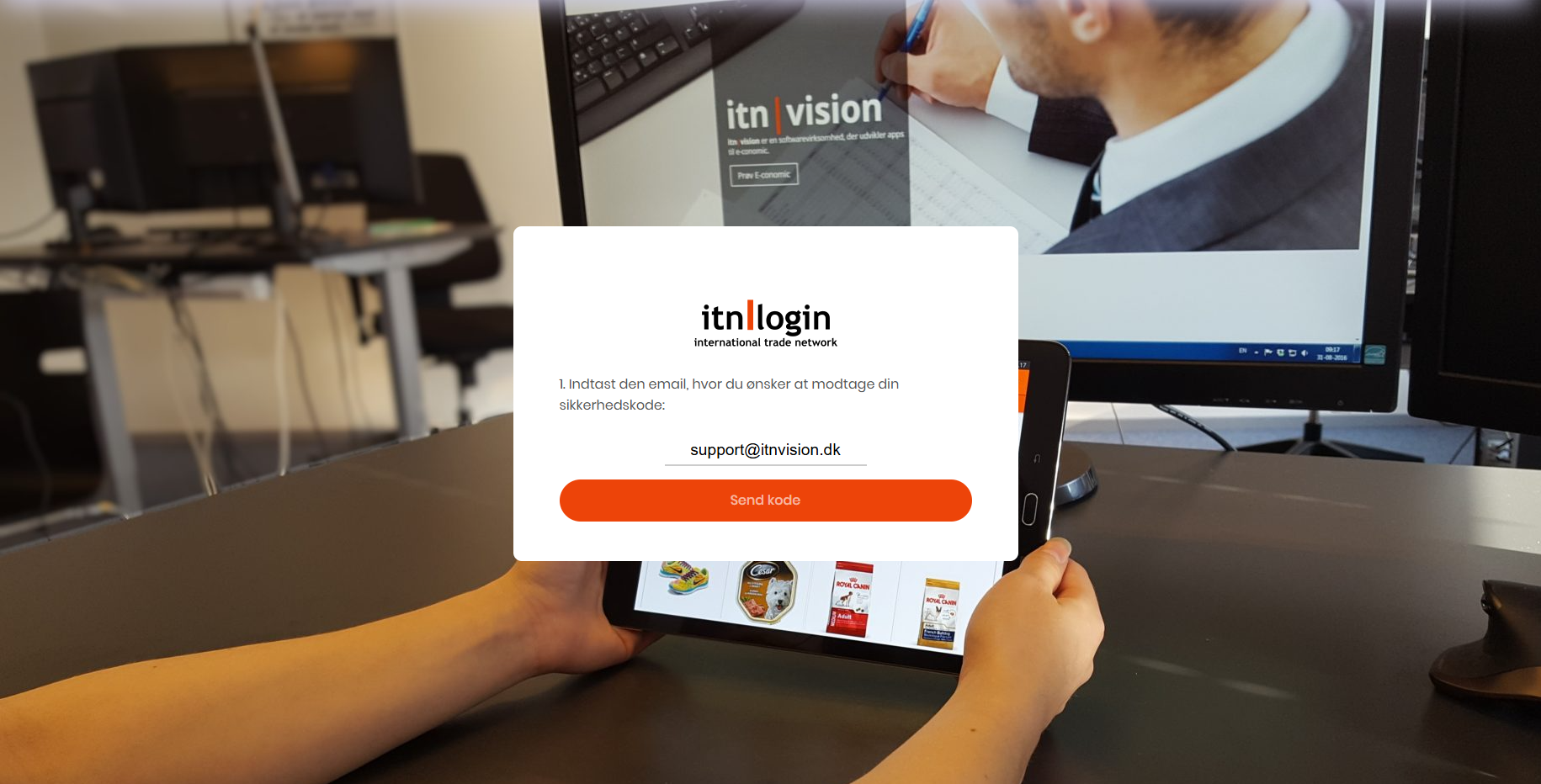
If you choose email:
Enter your email address
You will receive an email with a one-time code
Enter the code on the page to confirm the setup
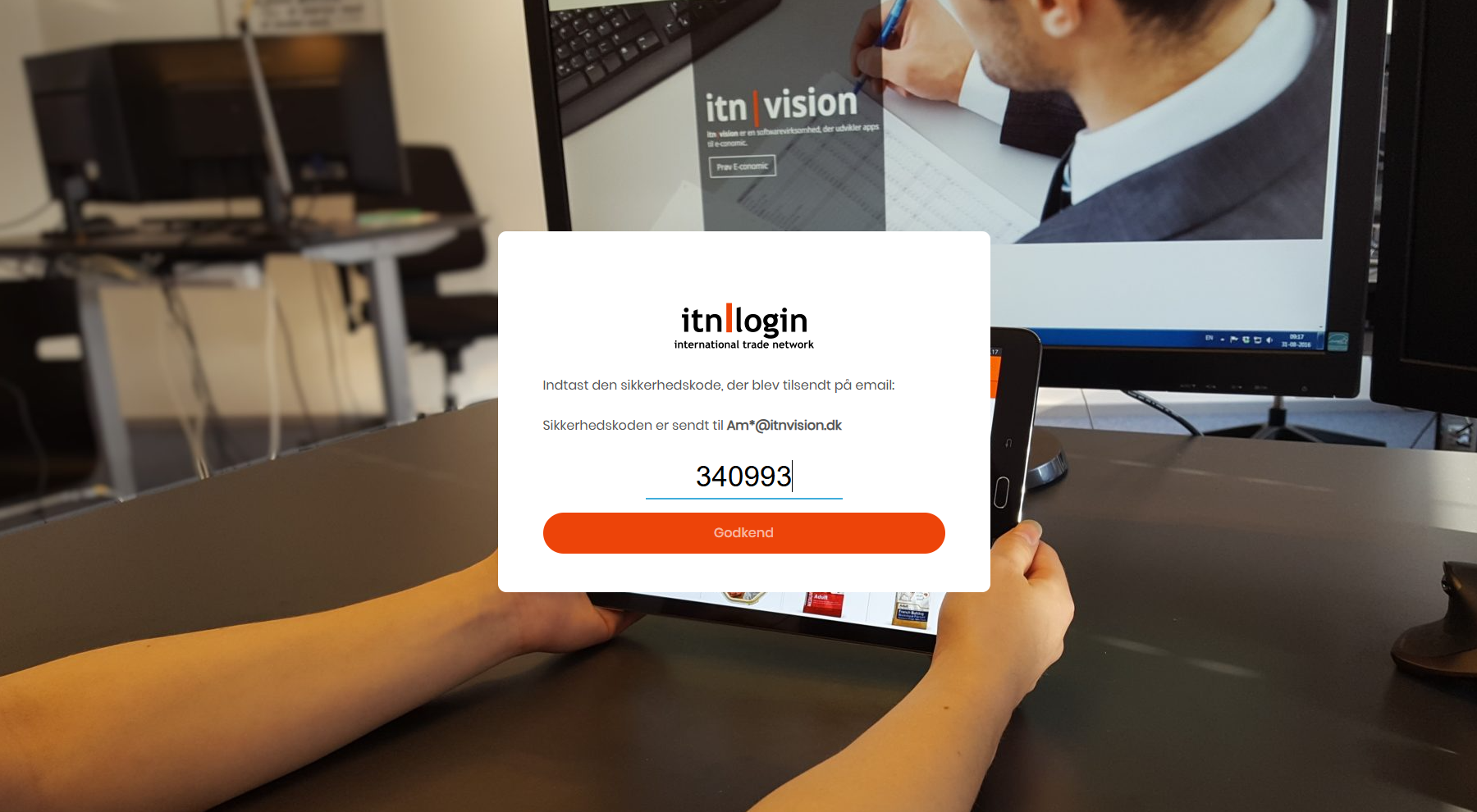
If you choose an authentication app:
Download your preferred authentication app, e.g. Visma Authenticator
Open the app and tap Add account
Scan the QR code displayed on the page
Enter the security code generated by the app
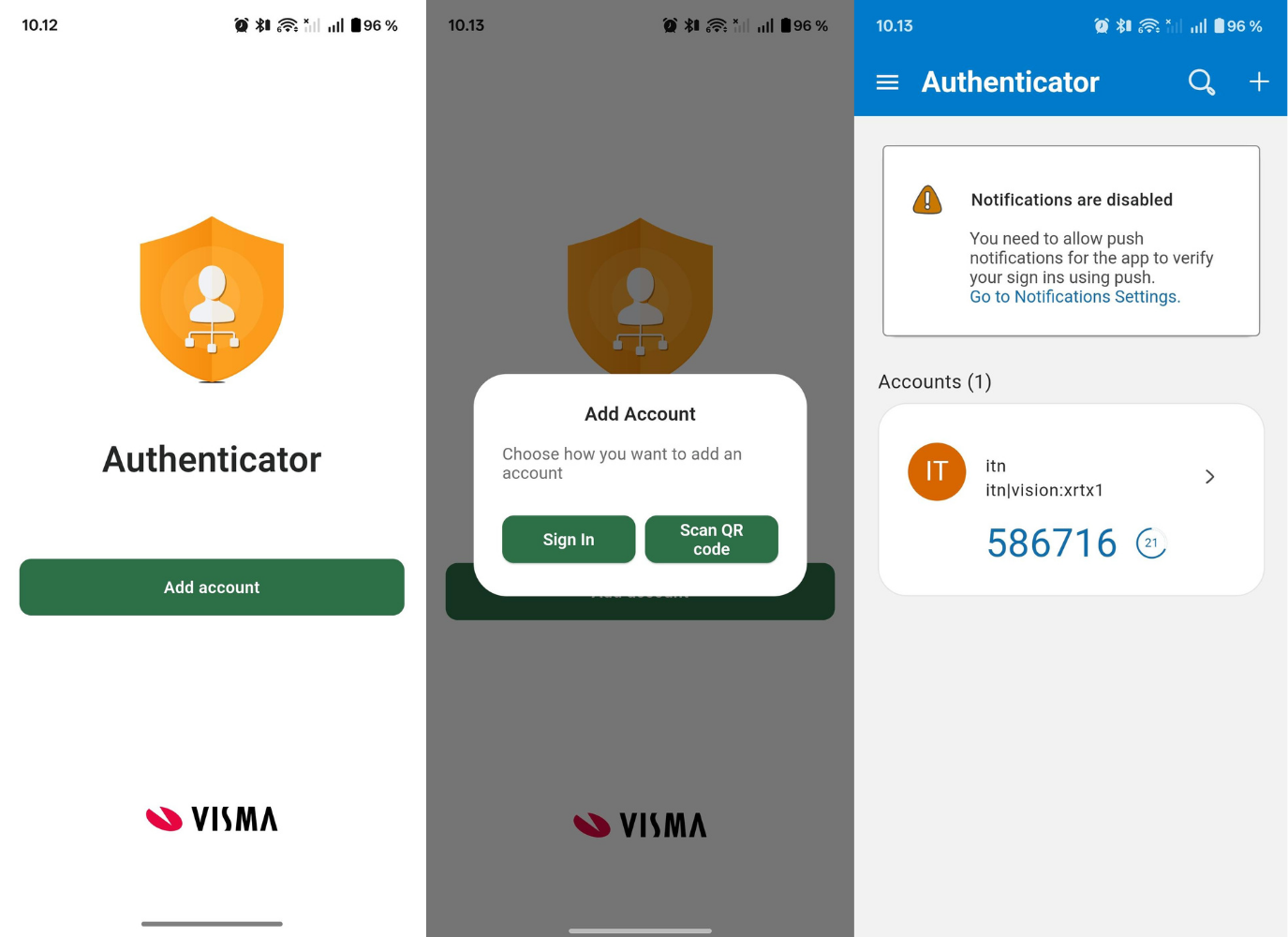
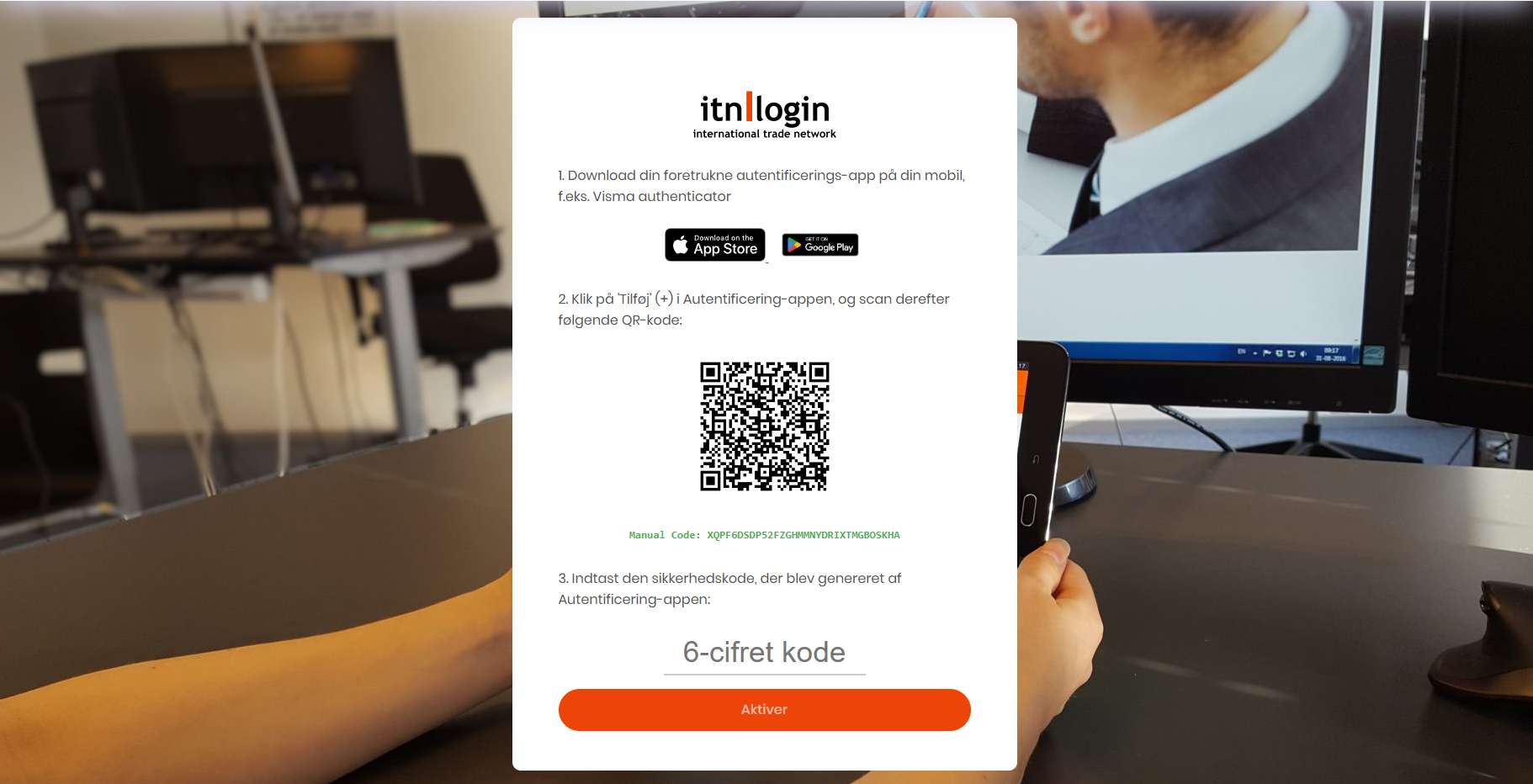
You have now successfully set up two-factor authentication. Going forward, when you log in, you will need to use your selected authentication app or email to complete the login.
Note:
Currently, it is not possible to disable two-factor authentication yourself. If you wish to have it disabled, please contact support@itnvision.dk, and our support team will assist you.